Mobile Money payment alerts for shops in Rwanda
An Android soundbox helps a busy counter hear incoming payments without repeatedly opening the inbox. Here is how WeConfirm fits into an MTN MoMo or Airtel Money shop.
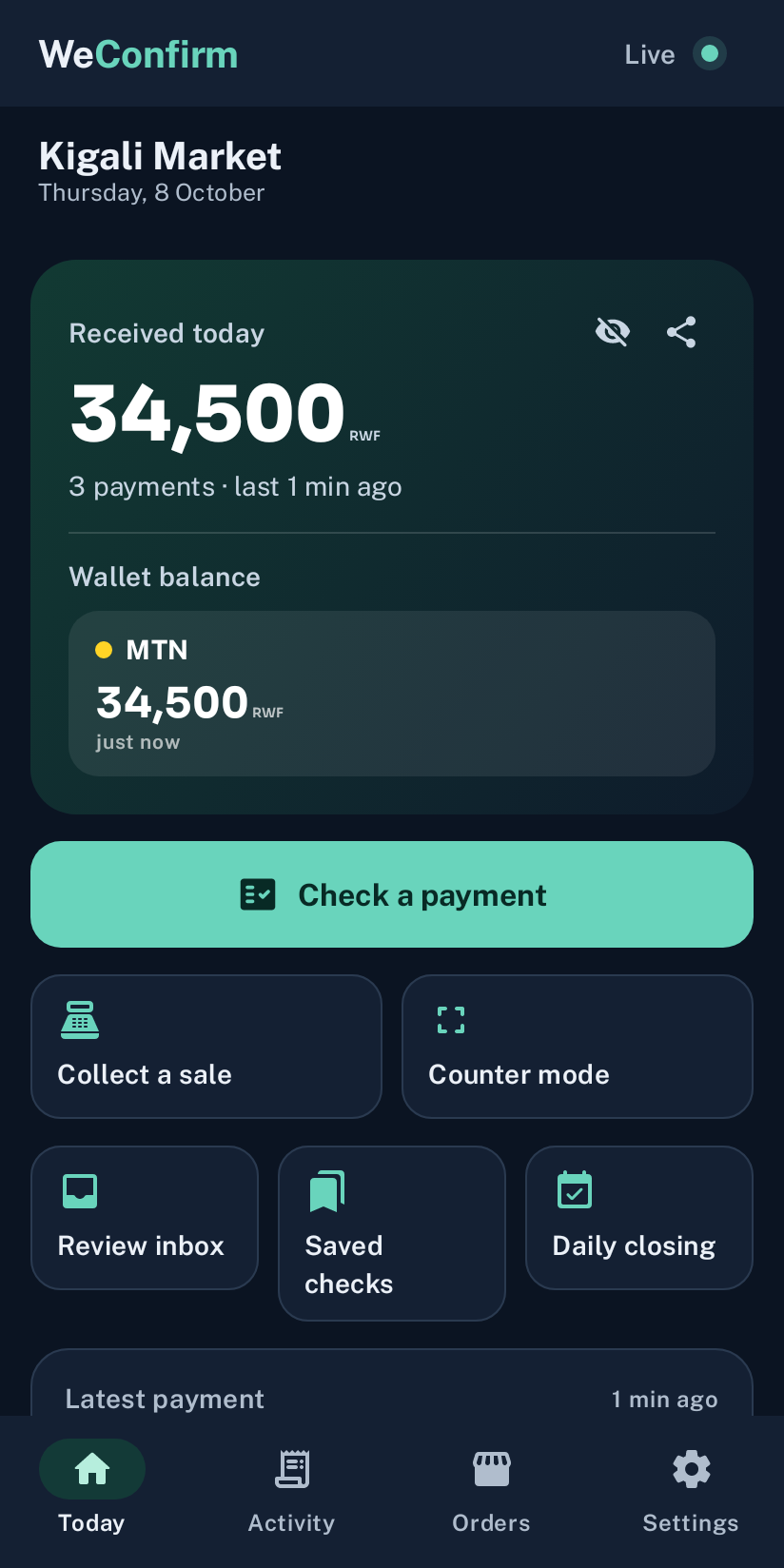
What a Mobile Money soundbox does
A soundbox announces a payment received on the shop phone. WeConfirm uses incoming payment SMS from MTN MoMo or Airtel Money, records the details it can read and plays the selected sound or voice announcement. The voice can speak in English or Kinyarwanda. A dedicated soundbox device is not required.
The announcement helps your team notice a payment while serving another customer. The payment still goes directly to your receiving MoMo or Airtel Money account. WeConfirm does not collect it or move money between accounts.
Use the phone that receives the payment SMS
Install the app on the Android phone containing the SIM used for shop payments. A phone that never receives the operator’s payment SMS cannot supply those receipts to the app. For a phone with several SIMs or receiving wallets, check which number the customer is paying and configure the relevant wallet in the app.
Ask for one small test payment to your own receiving number, then confirm that the operator’s SMS arrives, the payment is recorded and the announcement can be heard. A notification on a different phone is not the same as a received receipt on the shop phone.
Set up sound before your counter gets busy
- Create your WeConfirm account and sign in on the receiving phone.
- Enable the permissions requested for payment alerts and background operation.
- Choose the announcement language and volume in Sound and voice.
- Use the sound test, then check a real payment on the receiving SIM.
- Keep the phone charged and use the battery settings described in the installation guide.
Volume and background settings can affect whether the app is heard consistently. Test it after restarting the phone and after changing battery settings. Keep the receiving SIM active so payment messages continue to arrive.
Review the amount and your daily records
Hearing a sound is useful, but your staff should still compare the amount with the sale. Counter mode shows the latest recorded payment. Activity helps you find earlier receipts, and Today shows the recorded total. Sample screenshots on this website illustrate these screens; they are not live payment records.
The phone ledger is the app’s record of received messages. It is not a bank statement or a complete operator account history. If a message did not reach the receiving phone or could not be read, review the actual account through your operator before handing over goods.
What works without internet
The core phone announcement and local payment records do not depend on an online store connection. Account sign in, license refresh, published downloads and WooCommerce verification use online services. If an online feature is unavailable, check the receiving phone and account rather than assuming the payment has failed.
Choose access for your shop
New accounts receive a 14 day trial. Your account shows the current plan, renewal amount and payment instructions. Selecting a plan or sending a renewal request does not confirm a subscription payment; support must record the confirmed payment. Keep your account phone number and recovery details up to date.
Before you rely on it during trading
Use the official download, perform a real receiving SMS test and agree how staff will handle an unclear receipt. Keep an encrypted backup according to the app’s backup guidance. A website account download contains account information, not the complete phone payment ledger.